


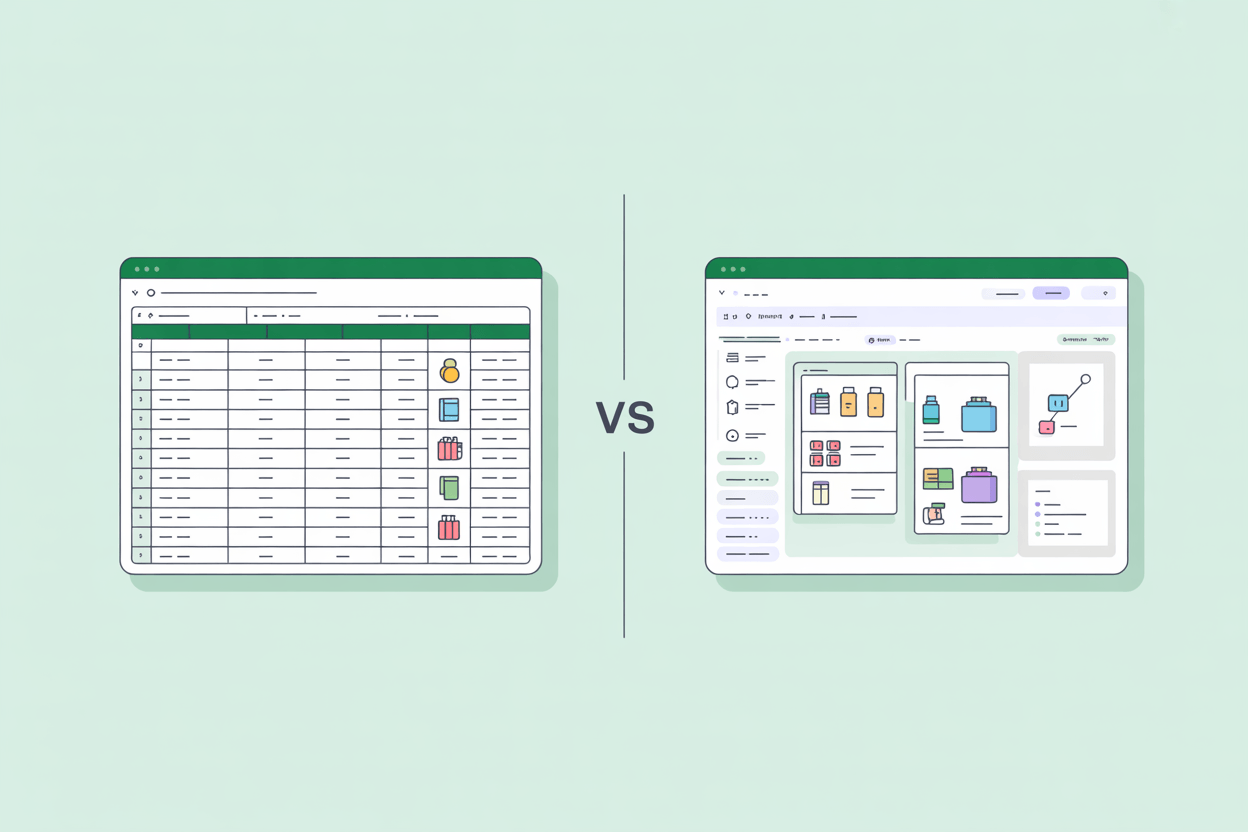
Managing product data in Excel works until the catalog grows, the team expands, or a second sales channel enters the picture. At that point, the gap between what Excel can do and what product data management actually requires starts costing real money.
Excel is where most companies store product data before they think seriously about how it should be managed. That is a rational response to early-stage constraints. The real question is not whether Excel is the right starting point, but at what point the Excel-to-PIM switch stops being optional.
What Excel Does Well for Product Data
Dismissing spreadsheets entirely misrepresents how product data gets managed in most mid-size companies. Excel has a genuine place early on, and understanding that place makes it easier to recognize when it has been outgrown.
Excel has real strengths in early-stage product data management. There is zero onboarding cost: every team member already knows how to use it, with no implementation project, no training program, and no vendor relationship to manage. The structure is flexible; add a column, rename a field, restructure the hierarchy, and it takes seconds. Suppliers, logistics partners, and marketplaces all accept Excel as an exchange format, making it the common language of product data in B2B supply chains.
In projects we have implemented, companies with under 500 SKUs and a single sales channel often managed well in Excel for years. At that scale, the overhead of a dedicated PIM system is rarely justified. Product catalogs grow, sales channels multiply, and teams expand. Excel does not scale with them.
Where Excel Breaks Down as a PIM
At a certain point, the spreadsheet that once held everything together starts generating more problems than it solves. The failure modes are consistent across industries and company sizes.
Scale is the first to show. Excel was built for analysis, not for managing tens of thousands of product records with complex attribute structures. Past a few thousand rows, file performance degrades. Filtering becomes unreliable. Opening, saving, and sharing files takes measurable time. Formulas that reference large data ranges become fragile. Excel's hard limit of 1,048,576 rows per sheet (source: Microsoft) may sound large, but a catalog with 50,000 SKUs across multiple attribute variants, language versions, and channel-specific fields will exhaust that space quickly. A catalog that grows from 800 to 8,000 SKUs does not just become harder to manage in Excel; it becomes actively error-prone.
Collaboration is the next failure point. Excel is a single-user tool by design. When two people edit the same file simultaneously, data gets overwritten. The standard workaround is emailing versioned copies, which produces the well-known final_v2_FINAL_revised.xlsx problem: multiple versions of the truth circulating across a team with no reliable way to identify which is current. Product data that should be a single source of record becomes a moving target.
Data quality erodes without anyone noticing. Excel applies no constraints on what goes into a cell. A weight field can contain "2kg", "2 kg", "2,0", or "two kilograms", all in the same column, all entered by different people on different days. There is no mandatory field enforcement, no data type validation, no warning when a required value is missing. Errors propagate silently and often reach the storefront before anyone catches them. Research from Raymond Panko at the University of Hawaii found that 88% of large organizational spreadsheets contain errors, based on field audits using rigorous methodology. For product data, this is not an abstract risk. It surfaces as incorrect shipping weights, wrong pricing, and missing safety certifications on the storefront.
Localization breaks the structure entirely. Managing multilingual product data in Excel means adding language columns, one set per market. A catalog with 10 attributes across 4 languages generates 40 columns before a single product-specific field is added. Adding a fifth market means restructuring the entire file. There is no translation workflow, no completeness tracking per language, and no way to efficiently route content to translators without exporting and re-importing separate files.
Channel distribution requires separate files per channel, which means maintaining separate truths. A webshop, a marketplace, a print catalog, and an ERP system each require product data in a different structure, with different mandatory fields, different image specifications, and different naming conventions. Excel cannot serve multiple channels simultaneously from a single data set. Conflicts get resolved manually every time a product changes.
Digital assets have no native home in Excel. Product data does not exist in isolation from product images, datasheets, certificates, and videos, but Excel has no mechanism to link a product row to its associated digital files. References are typically managed as file path strings or hyperlinks, fragile, not portable, and impossible to validate at scale.
Gartner estimates that poor product data quality costs organizations an average of $12.9 million annually. For manufacturers and distributors managing complex product catalogs, where errors translate directly into returns, mis-ships, and failed marketplace listings, the exposure concentrates fast.
Excel vs. PIM: Feature Comparison
| Capability | Excel | PIM |
|---|---|---|
| Handles 10,000+ SKUs | No: performance degrades past row limits | Yes: built for large catalogs |
| Simultaneous multi-user editing | No: version conflicts | Yes: role-based concurrent access |
| Field validation and mandatory fields | No: any value in any cell | Yes: enforced at data entry |
| Multilingual data management | Manual: column multiplication per language | Native: structured per language |
| Multichannel export | Manual: separate files per channel | Yes: channel-specific mappings from one data set |
| Digital asset linking | Manual: file paths or hyperlinks | Yes: native DAM integration |
| Workflow and approval process | None | Yes: configurable per product type |
| Audit trail and change history | None | Yes: full version history |
| Supplier data onboarding | Excel file exchange | Structured import with validation |
| Implementation cost | None | Medium to high depending on system |
When to Switch from Excel to a PIM System
The transition from Excel to PIM rarely happens because of one event. It accumulates. These signals indicate that a team has crossed the threshold where using Excel for product data management costs more to maintain than replacing it:
- The catalog exceeds 1,000 SKUs or spans three or more product categories. At this scale, maintaining consistent attribute structures across the catalog in a flat file becomes a structural problem, not just an organizational one.
- Two or more active sales channels have different data requirements. Once product data needs to be formatted differently for different outputs, a single Excel file as the system of record stops being feasible.
- More than one person is responsible for product data. Collaborative product data management does not work in Excel. If two people own product content, a shared system is not optional.
- Products are sold in more than one language or market. Multilingual catalogs in Excel scale linearly in complexity. Every additional market multiplies the maintenance burden.
- Data errors are reaching customers. Missing attributes, wrong specifications, outdated descriptions, or broken image references on the storefront are a direct signal that the data management process has no reliable validation layer.
- New product time-to-market is measured in weeks due to data preparation. When launching a product requires manually copying, reformatting, and distributing data across multiple files and channels, the bottleneck is the process, and the process is built around Excel.
Companies recognizing three or more of these signals are past the point where spreadsheet-based product data management is sustainable.
The broader market trajectory confirms how widespread this problem is. The global PIM market was valued at $20.95 billion in 2025 and is projected to reach $106.40 billion by 2034, growing at a CAGR of nearly 20%. That rate of adoption reflects real operational pressure, not software trend-chasing.
What a PIM System Does That Excel Cannot
When teams compare Excel vs. PIM in practical terms, the capability gap is straightforward to map. A PIM system is purpose-built for the problems above. Understanding what it actually addresses prevents both over-investment and disappointment.
A PIM system does not transform bad data into good data. It gives good data governance a place to operate at scale.
The most immediate difference is a single source of truth with role-based access. All product data lives in one place. Roles determine who can view, edit, approve, and publish data. There is no ambiguity about which version is current.
Data validation and mandatory fields change how errors enter the system. PIM systems enforce data types, value ranges, and required fields at the point of entry. A weight field accepts only numeric values in a defined unit. A product cannot be published without a complete set of mandatory attributes.
Approval workflows close the gap that allows errors to reach customers. Before product data reaches any channel, it passes through a configurable review and approval process. Teams that previously caught errors at the storefront start catching them during data entry.
Channel-specific export mappings replace the multiple-file problem. A single product record in a PIM can be exported to a webshop, a marketplace, a print supplier, and an ERP, each receiving the data in the format and structure it requires, without maintaining separate files.
Native multilingual data management replaces column multiplication. Language variants are stored as structured attributes of the product record, not as additional columns. Adding a market means adding a language, not restructuring the file.
DAM integration links digital assets directly to product records. Images, datasheets, and certificates are managed alongside the product data they belong to, with format validation and usage tracking. AtroPIM includes a built-in DAM as part of the AtroCore platform, so asset management does not require a separate tool or integration.
What PIM does not solve is worth stating clearly. It does not fix upstream data quality problems. If the ERP is supplying incorrect or incomplete product master data, a PIM inherits those problems. It does not replace internal governance. A PIM with poorly defined processes, unclear ownership, and no data standards will produce inconsistent data faster than a spreadsheet, because more people have access to it. Change management is required. Teams accustomed to Excel workflows need structured onboarding, clear process documentation, and time.
For teams evaluating their first PIM system, the implementation cost and commitment risk are real concerns. AtroPIM is an open-source PIM with on-premises and SaaS deployment options, no vendor lock-in, and a modular structure that lets teams start with core functionality and expand as requirements grow. This removes a significant part of the financial barrier for a first implementation.
Using Excel and PIM Together
The Excel vs. PIM decision is rarely as binary as it looks. In practice, most teams that implement a PIM system continue using Excel, just differently.
Excel remains useful as an exchange format. Suppliers submit product data as spreadsheets. Logistics partners request data exports in Excel format. Internal teams run ad-hoc analyses in spreadsheets. None of this changes when a PIM is introduced.
What changes is the role Excel plays in the data flow. Before a PIM, Excel is the system of record, the place where product data lives and is managed. After a PIM, Excel becomes an input and output format, a way to move data into and out of the system of record, which is now the PIM.
The goal is not to eliminate Excel from the workflow. It is to remove Excel from the critical path of product data management.
AtroPIM supports structured Excel import with field mapping and validation, as well as configurable Excel exports. Teams that have spent years managing product data in spreadsheets can migrate incrementally, importing existing files and validating data quality during the transition rather than attempting a one-time cutover.
For teams ready to assess the migration in detail, the AtroPIM Excel import guide covers the full transition process: from auditing existing spreadsheet data to configuring data types, mapping attributes, and validating imports post-migration. The most common outcome is not that Excel disappears from the workflow. It is that product launches stop waiting for it.